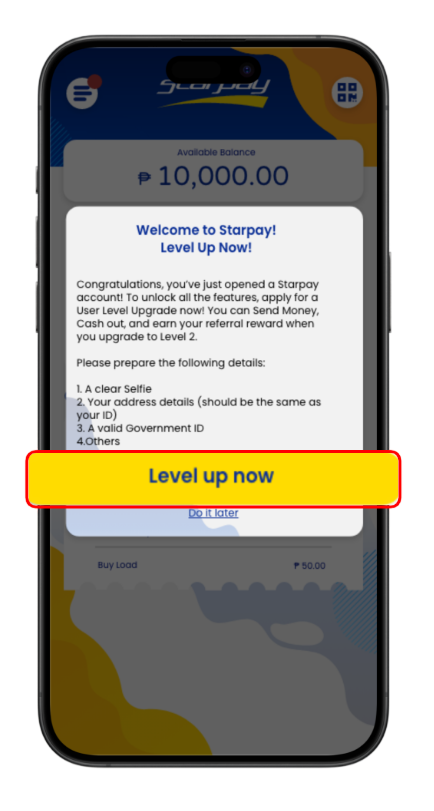



Upgrade Your Account
Gain access to more features when you upgrade
STEPS
1. SELFIE
- Tap on the "+Upload Selfie" button.
- Click on the "✓" once done.
Note:
For faster validation of your Upgrade Level Request, make sure that your whole face and neck is visible in your selfie
2. ADD I.D.
- Tap on the "+Upload I.D." button. Click on the "✓" once done.
- Make sure you take a picture of your physical I.D. Photocopy and digital copies are NOT acceptable.
- Make sure that you take a top shot photo of your I.D.
- Make sure all information in your I.D. is visible in the photo you sent.
- Fill up all fields, and then tap "Continue"
3. ADDRESS
- Enter your permanent and present address.
- Fill in all required fields, and tap "Continue".
- Make sure that the address in your I.D. and your permanent / present address is the same.
4. ADDITIONAL INFO
- Enter additional information and then tap on "Submit"
- Make sure all information is correct to avoid delays and inconvenience.
- Kindly wait for Update Level validation. This may take a while.